View Vehicle Information
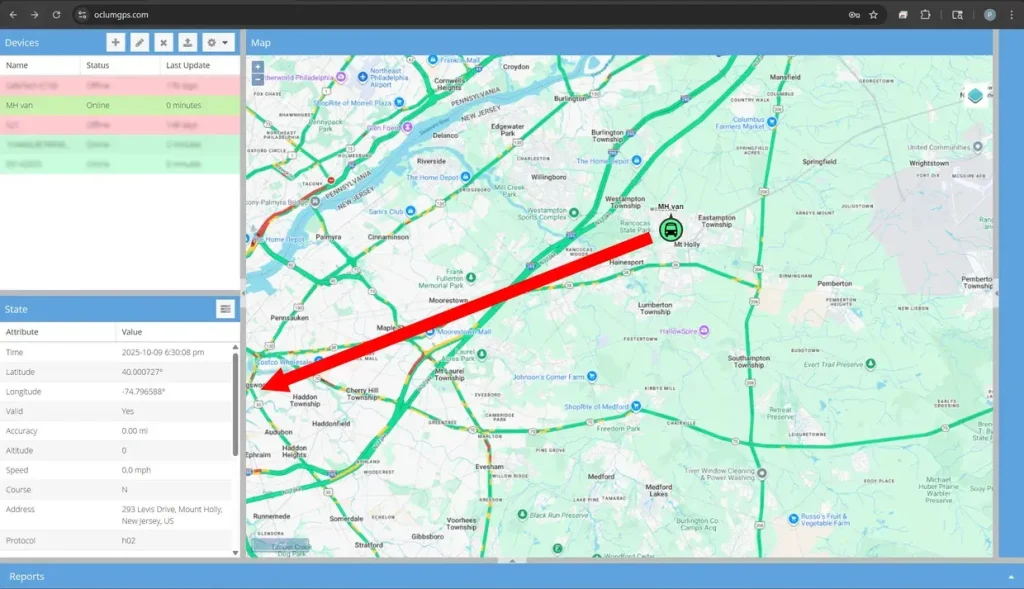
Clicking on your vehicle from the top left window will show the current location and status information. You may also click the vehicle icon to bring up the details. The information will be shown on the bottom left of the page.
View Historical Data & Reports
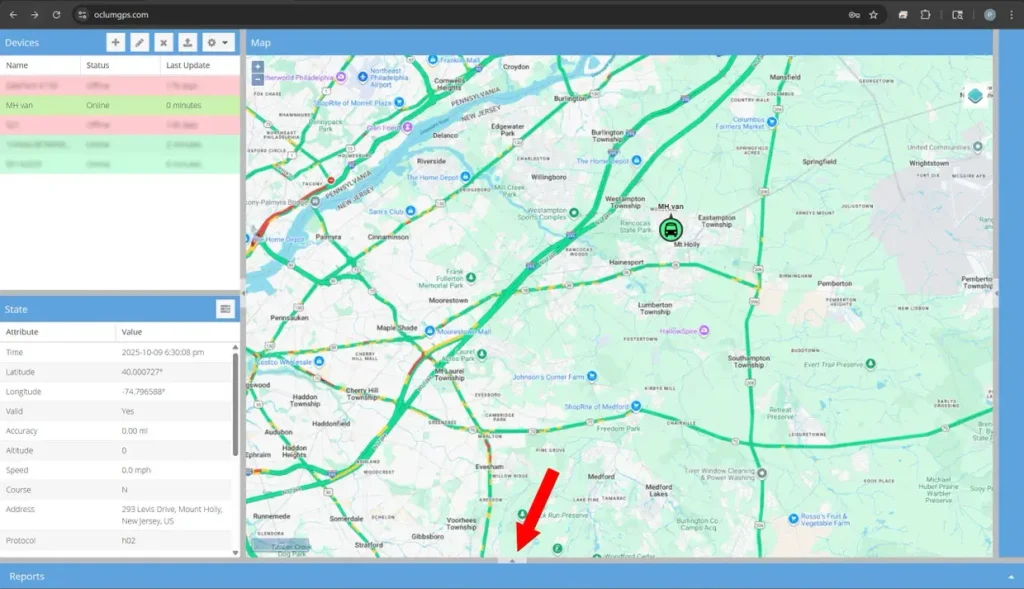
From the main page, click the arrow to bring up the reports selector.
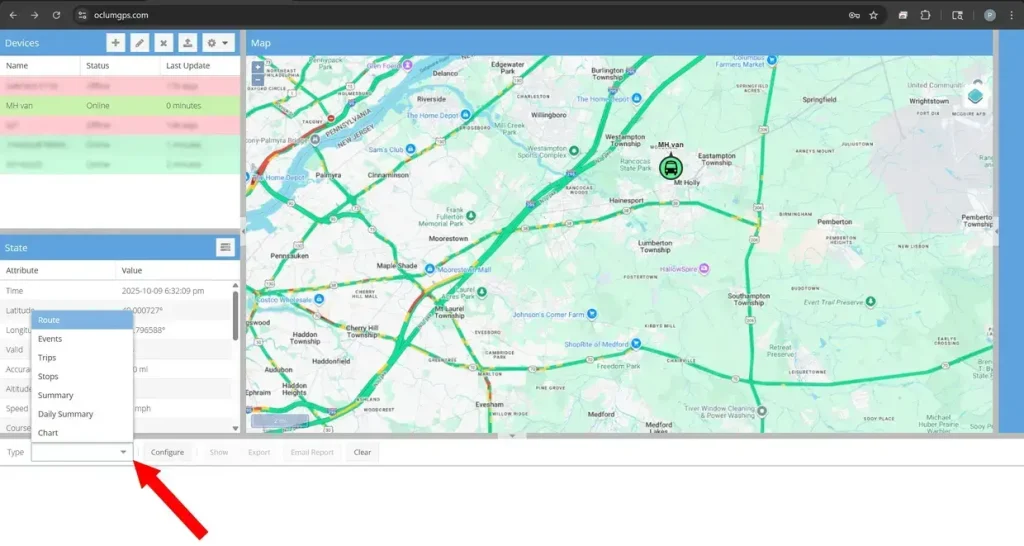
Select “Type” to view different reports. Here we view “Route”.
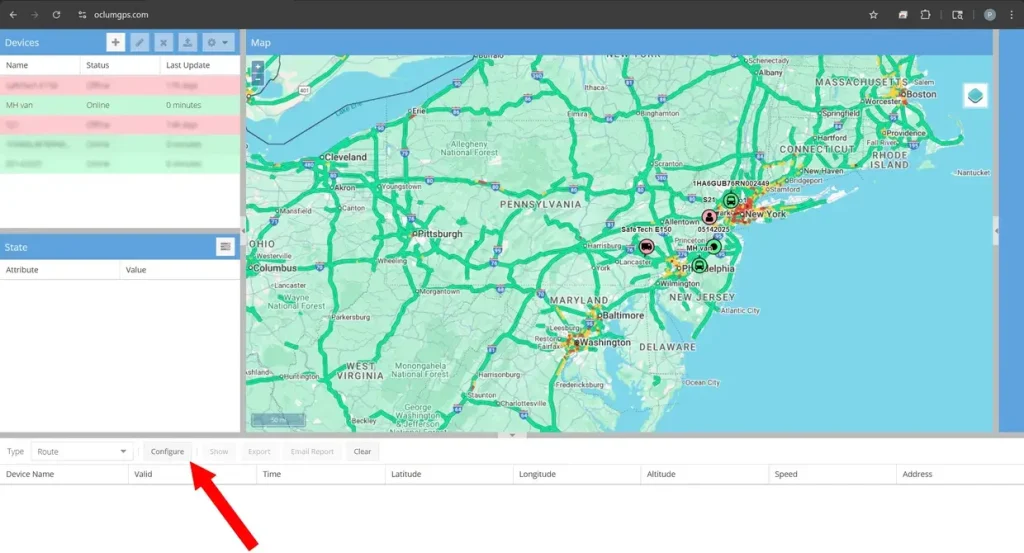
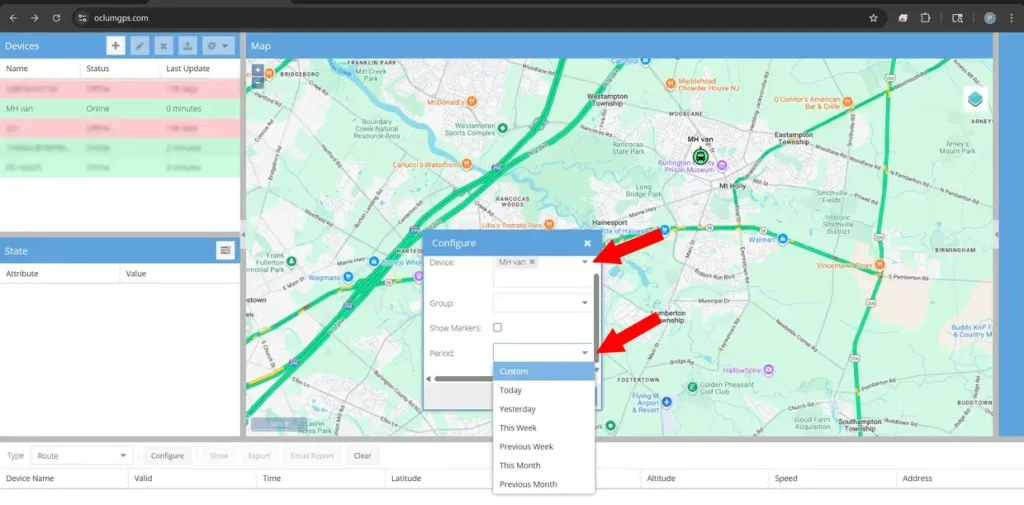
After selecting the “Type” you must click configure to view the configure window.
Select your vehicle and the date range you would like to view and click the check box to close.
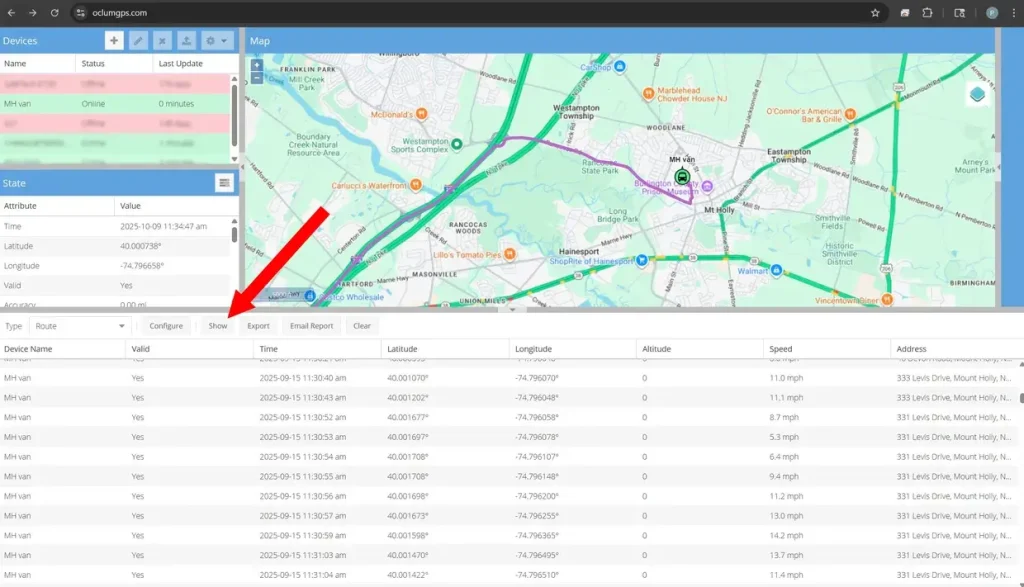
Clicking “Show” will load the historical data for the report.
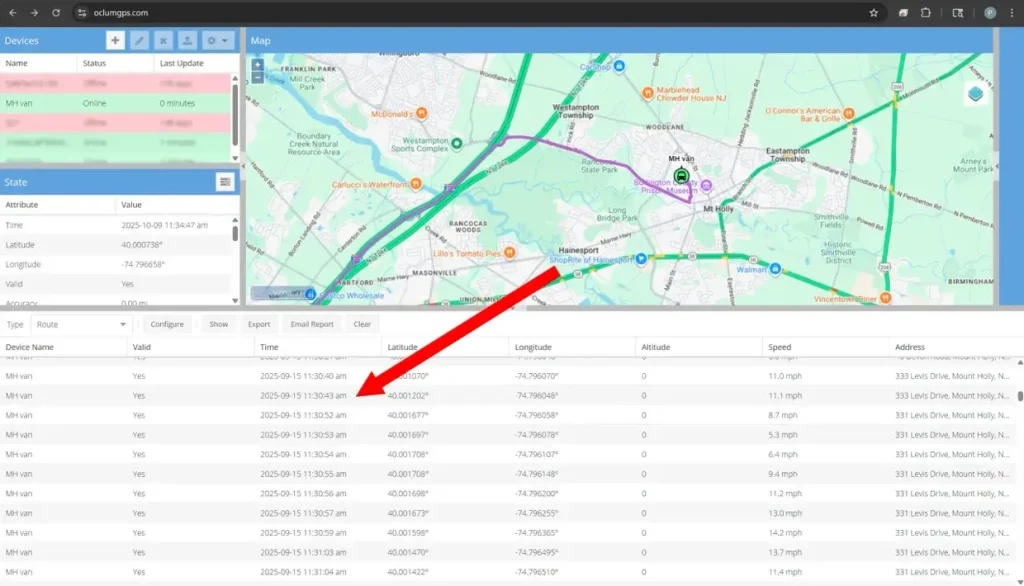
You may click on an individual line from the report to see more detail and a map location for the point.
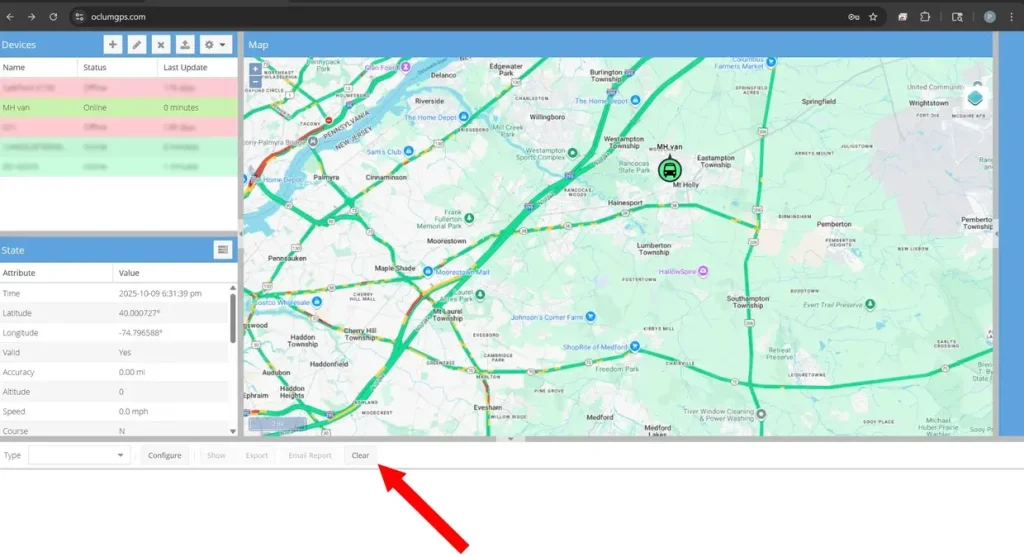
Clicking “Clear” purges the current report data from the window.